

Step 1 — Get the nocnoc template
Download the nocnoc invoice template. Download template →Step 2 — Upload the template to Sellercloud
1
Open your nocnoc company settings
Go to Settings → Companies and open your nocnoc-designated company.
2
Open Invoice Settings
Click Toolbox → Invoice Settings → Edit.
3
Select Word2PDF
In the Invoice Type dropdown, select Word2PDF across all three panels — Standard Packing Slip, Order Form Packing Slip, and Wholesale Packing Slip.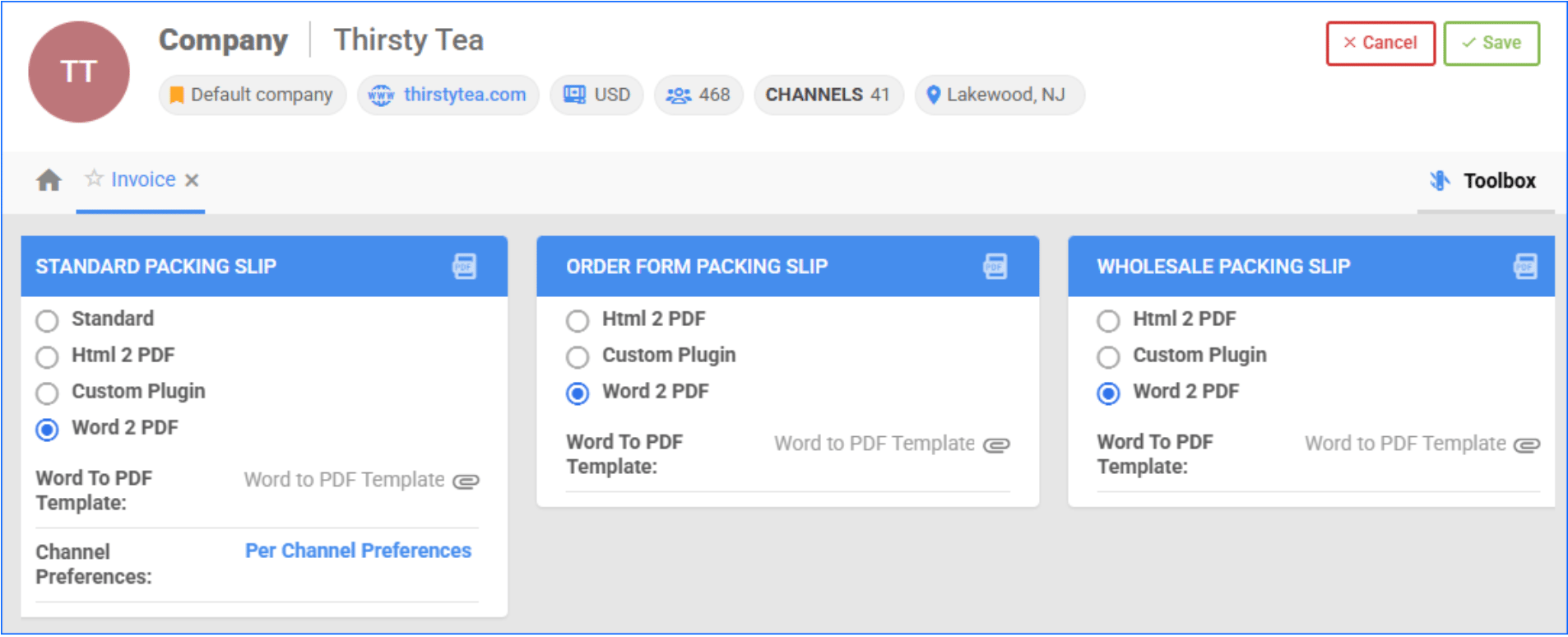
4
Upload the template
Upload the nocnoc template file using the upload option next to the Word2PDF setting.
5
Save
Click Save.
Step 3 — Print the invoice for an order
Once the template is configured, you can print a PDF invoice in two ways:- Order Details page — open the order → click the Actions menu → select Print Invoice to PDF → Go
- Manage Orders page — select the order → click the Actions menu → Print Invoice to PDF → Go
Have a question about this integration? Contact our support team →