> ## Documentation Index
> Fetch the complete documentation index at: https://docs.nocnoc/llms.txt
> Use this file to discover all available pages before exploring further.

# Add barcode to packing slip

> How to add nocnoc's barcode to your Shopify order template for shipping labels.

nocnoc requires a barcode on shipping labels to process your orders. Choose the method that works best for your setup.

<CardGroup cols={2}>
  <Card title="Option 1 — Order Printer Pro" icon="print" href="/shopify/packing-slip#option-1-order-printer-pro">
    Requires the [Order Printer Pro](https://apps.shopify.com/order-printer-pro) app from the Shopify App Store.
  </Card>

  <Card title="Option 2 — Native packing slips" icon="file" href="/shopify/packing-slip#option-2-native-packing-slips">
    Uses Shopify's built-in packing slip template. No additional apps needed.
  </Card>
</CardGroup>

<Note>
  We recommend **Option 1 (Order Printer Pro)** whenever possible. It's easier to set up and provides a more reliable barcode rendering.
</Note>

***

## Option 1: Order Printer Pro

[Order Printer Pro](https://apps.shopify.com/order-printer-pro) is a Shopify app that you need to install from the Shopify App Store before starting.

### Step 1: Open the template editor

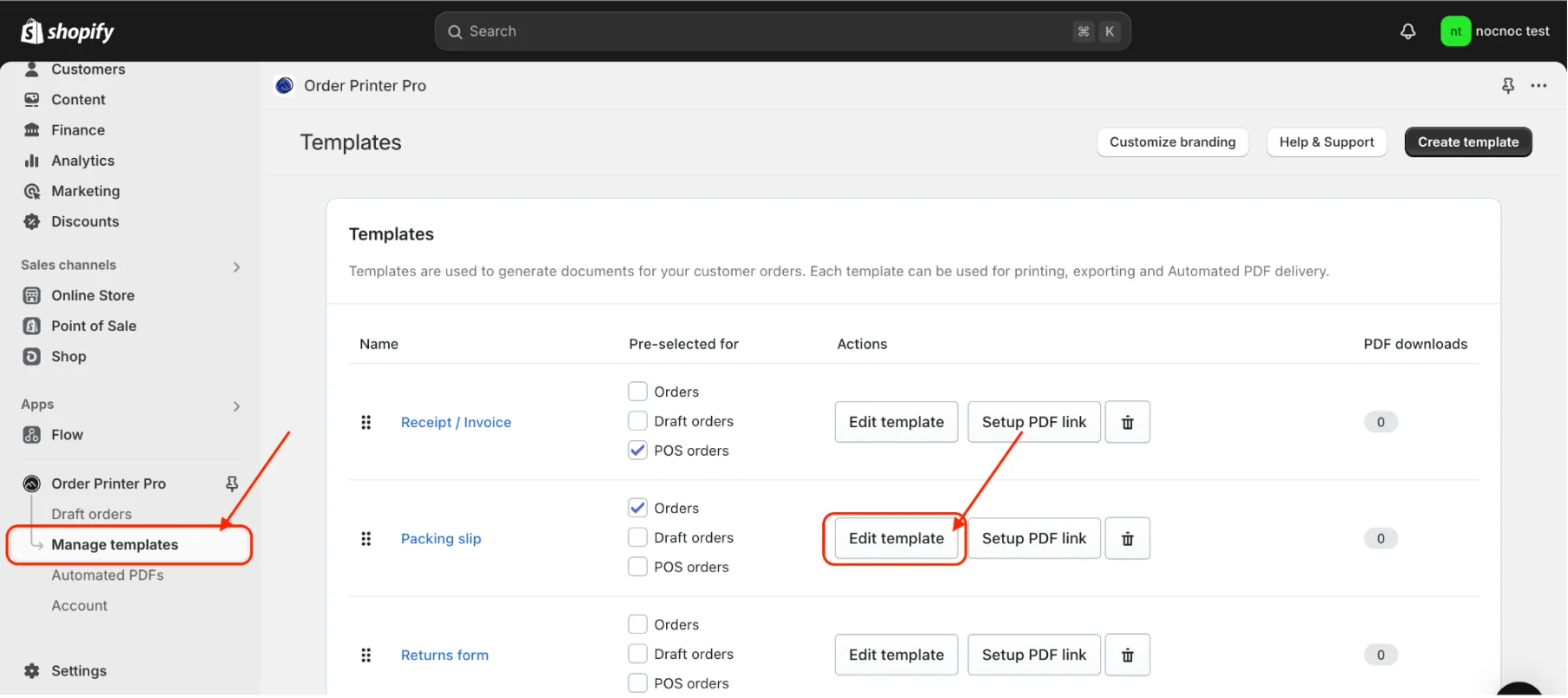
Access the **Manage Templates** section of Order Printer Pro. Select your **Packing Slip** template and click **Edit Template**.

<img src="https://mintcdn.com/nocnoc/U8Feu1h3NmzAShWB/shopify/images/packing-slip-order-printer-editor.png?fit=max&auto=format&n=U8Feu1h3NmzAShWB&q=85&s=2489a05b9913e519140bcb7537df17a6" alt="Order Printer template editor" width="1806" height="804" data-path="shopify/images/packing-slip-order-printer-editor.png" />

### Step 2: Add the barcode code

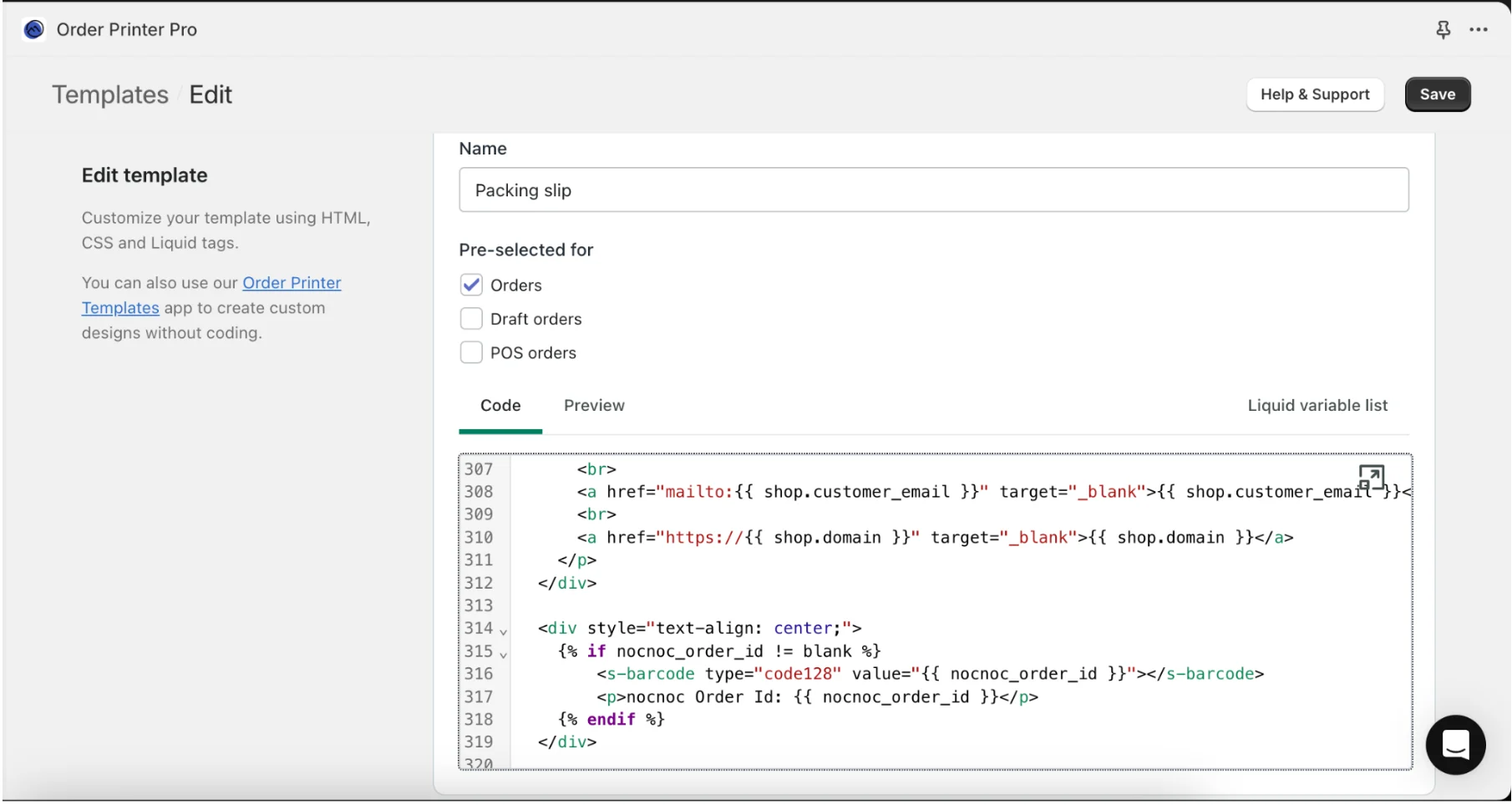
Insert the following two code blocks into your template.

**Code 1** — Captures the nocnoc Order ID. Add this at the **beginning** of the template.

```liquid theme={null}
<!-- Capture nocnoc Order ID -->
{% if order.note contains "NocNoc Order Id:" %}
  {% capture nocnoc_order_id %}{{ order.note | split: ":" | last | strip }}{% endcapture %}
{% endif %}
```
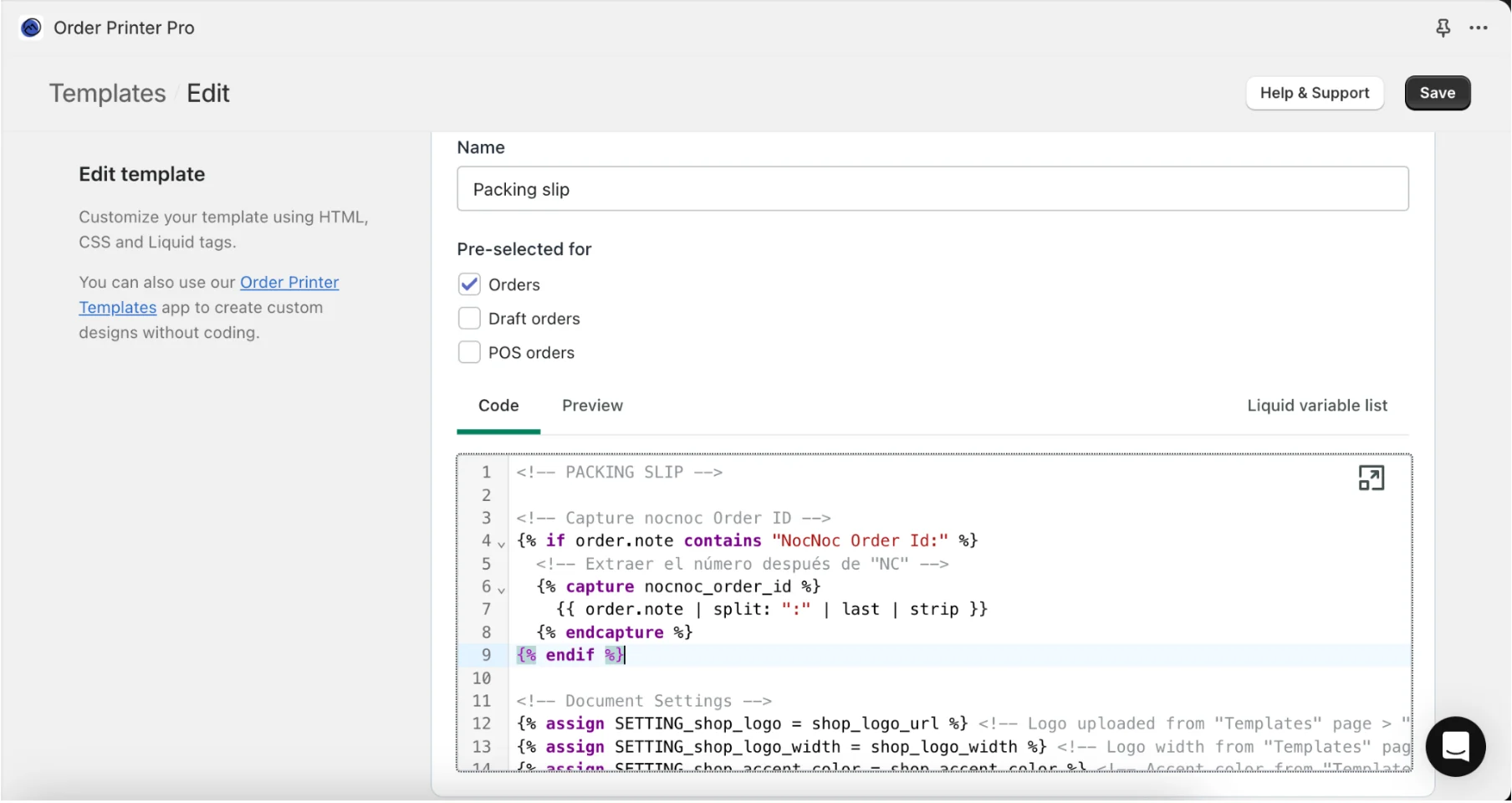
<img src="https://mintcdn.com/nocnoc/U8Feu1h3NmzAShWB/shopify/images/packing-slip-capture-code.png?fit=max&auto=format&n=U8Feu1h3NmzAShWB&q=85&s=09e8c785cc8e117c6bf38ef77b578f3a" alt="Capture code in template editor" width="1808" height="960" data-path="shopify/images/packing-slip-capture-code.png" />

**Code 2** — Adds the barcode and the `nocnoc OrderID: NCXXXXX` label. Add this **wherever you want** in your template. It only displays for nocnoc orders and won't affect the rest of your operation.

```liquid theme={null}
<div style="text-align: center;">
    {% if nocnoc_order_id != blank %}
        <s-barcode type="code128" value="{{ nocnoc_order_id }}" style="width: 300px; height: 80px;"></s-barcode>
        <p>nocnoc Order Id: {{ nocnoc_order_id }}</p>
    {% endif %}
</div>
```

<img src="https://mintcdn.com/nocnoc/U8Feu1h3NmzAShWB/shopify/images/packing-slip-barcode-code.png?fit=max&auto=format&n=U8Feu1h3NmzAShWB&q=85&s=1f0c84db027fa205ff8b844829c7ac78" alt="Barcode code in template editor" width="1810" height="964" data-path="shopify/images/packing-slip-barcode-code.png" />

Once you've made both changes, click **Save**.

***

## Option 2: Native packing slips

### Step 1: Download and upload the barcode font

Download the Barcode 39 Text font from Google Fonts:

[https://fonts.google.com/specimen/Libre+Barcode+39+Text](https://fonts.google.com/specimen/Libre+Barcode+39+Text)

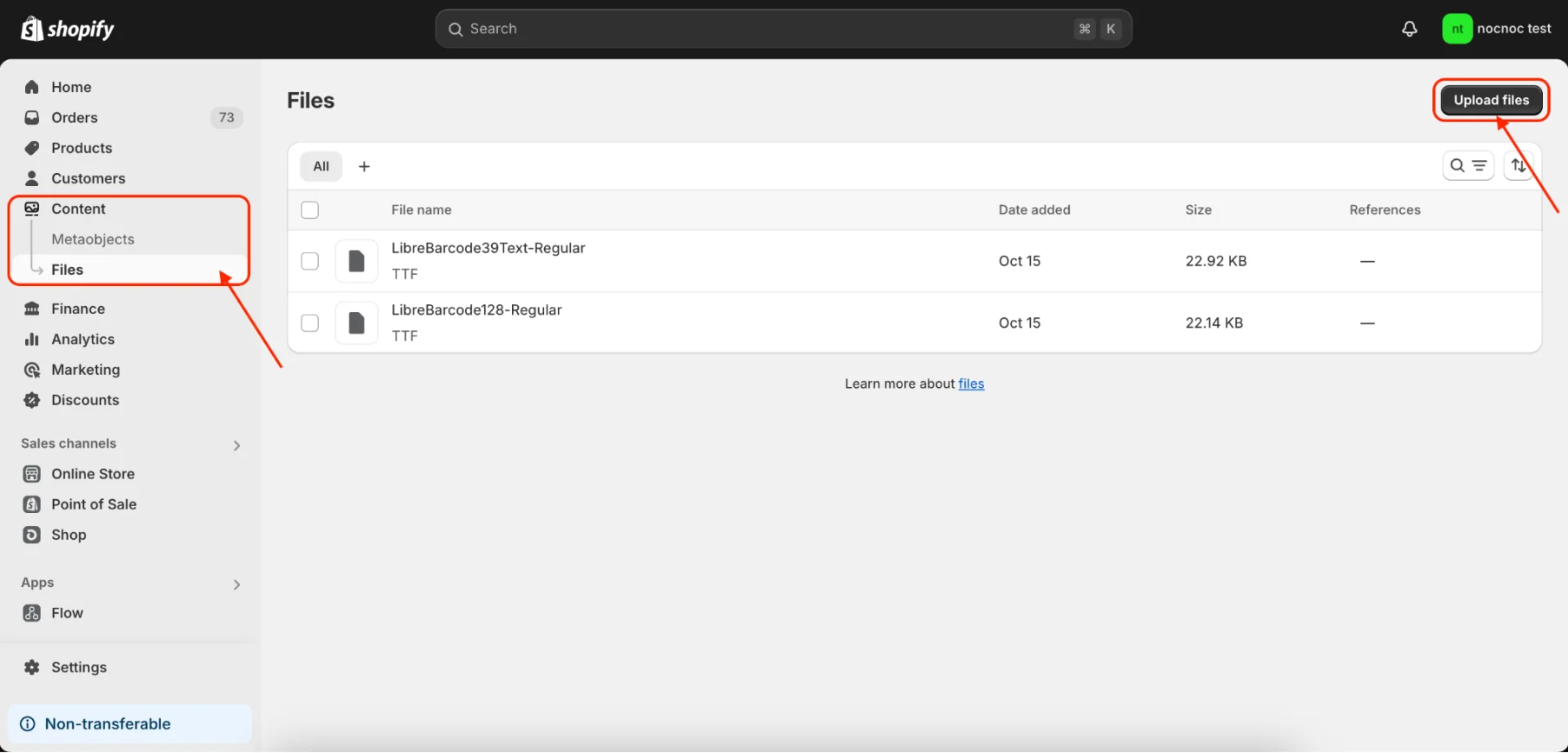
Extract the `.zip` file and upload the `.ttf` file to your Shopify store. Go to **Content → Files** and click **Upload Files**.
<img src="https://mintcdn.com/nocnoc/U8Feu1h3NmzAShWB/shopify/images/packing-slip-upload-font.png?fit=max&auto=format&n=U8Feu1h3NmzAShWB&q=85&s=b14926261550b27b75c7bf814091d47f" alt="Upload font file in Shopify Content Files" width="1804" height="866" data-path="shopify/images/packing-slip-upload-font.png" />

<Note>
  Copy and save the URL that Shopify generates for your uploaded file — you'll need it in the next step.
</Note>

### Step 2: Modify the packing slip template

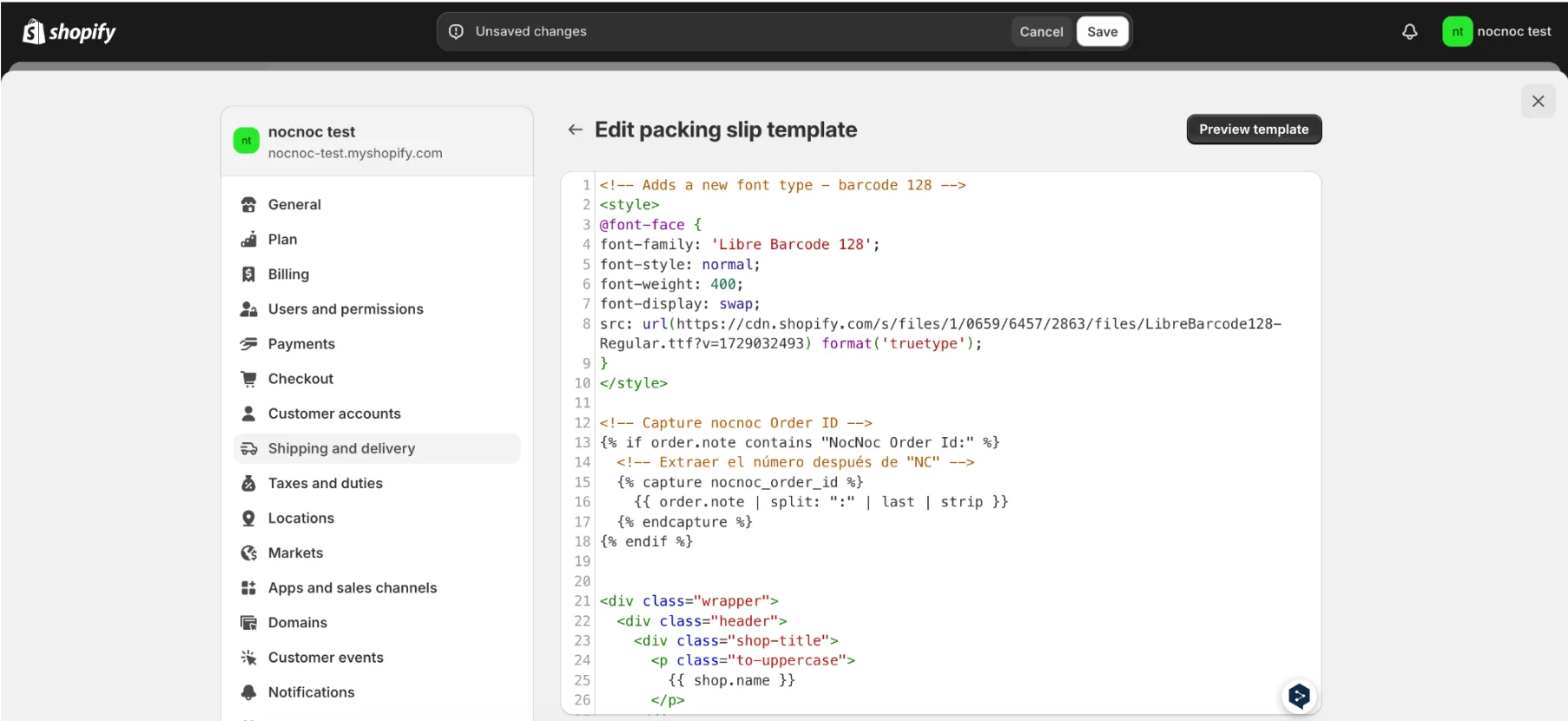
Go to **Settings → Shipping and Delivery → Packing Slips Template** and add the following three code blocks.

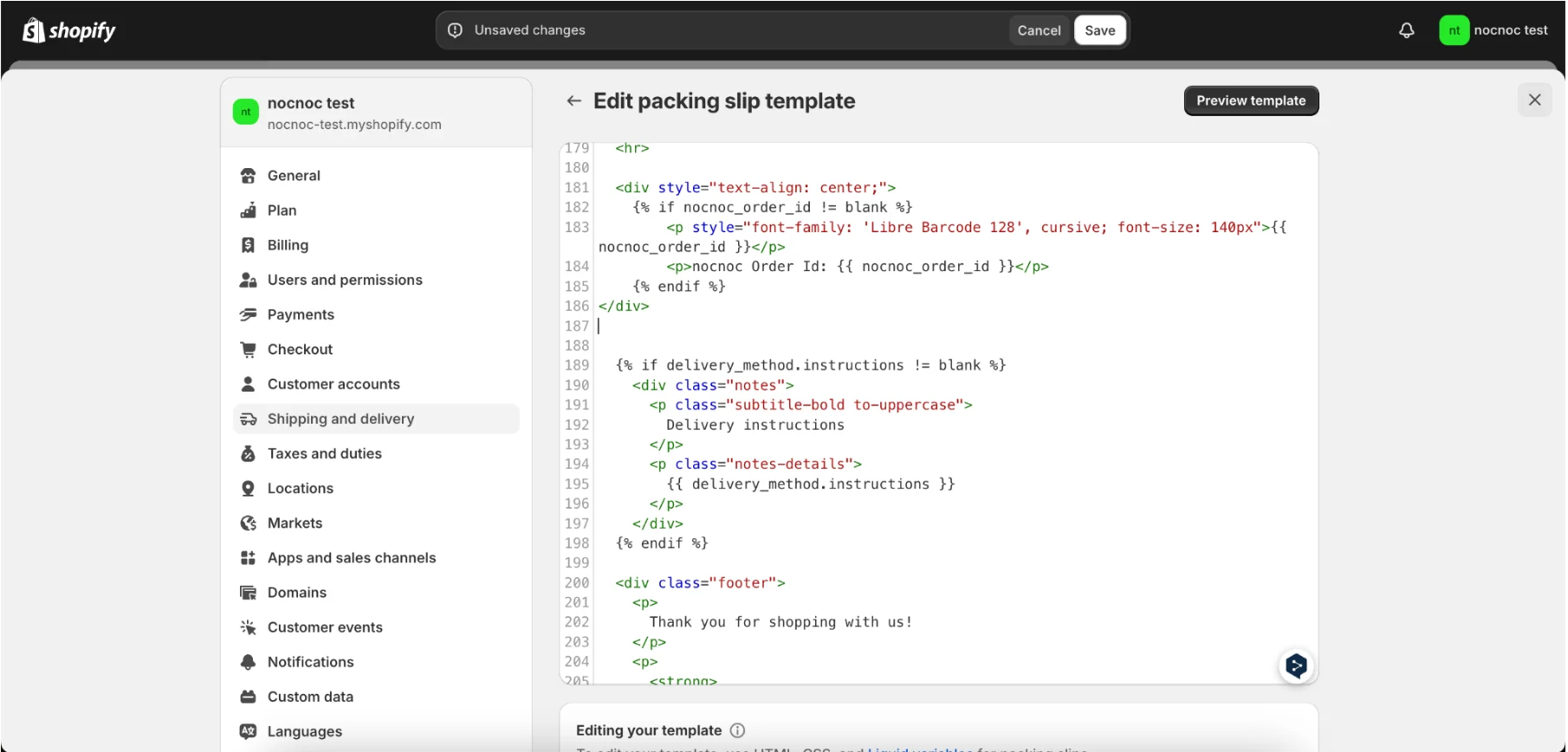
**Code 1** — Loads the barcode font. Add this at the **beginning** of the template. Replace `URL_OF_YOUR_FONT_FILE` with the URL from Step 1.

```html theme={null}
<style>
@font-face {
  font-family: 'Libre Barcode 39 Text';
  font-style: normal;
  font-weight: 400;
  font-display: swap;
  src: url(URL_OF_YOUR_FONT_FILE) format('truetype');
}
</style>
```

**Code 2** — Captures the nocnoc Order ID. Add this at the **beginning** of the template.

```liquid theme={null}
<!-- Capture nocnoc Order ID -->
{%- assign nocnoc_order_id = '' -%}
{%- if order.note contains "NocNoc Order Id:" -%}
  {%- assign nocnoc_order_id = order.note | split: ":" | last | strip | upcase -%}
{%- endif -%}
```

<img src="https://mintcdn.com/nocnoc/U8Feu1h3NmzAShWB/shopify/images/packing-slip-native-capture.png?fit=max&auto=format&n=U8Feu1h3NmzAShWB&q=85&s=a261c5d410002a22410824524258d59e" alt="Capture code in native packing slip template" width="1806" height="830" data-path="shopify/images/packing-slip-native-capture.png" />

**Code 3** — Adds the barcode and the `nocnoc OrderID: NCXXXXX` label. Add this **wherever you want** in your template. It only displays for nocnoc orders and won't affect the rest of your operation.

```liquid theme={null}
<div style="text-align: center; margin-top: 40px;">
  {%- if nocnoc_order_id != blank -%}
    <p style="font-family: 'Libre Barcode 39 Text', cursive; font-size: 80px;">*{{- nocnoc_order_id -}}*</p>
    <p>nocnoc Order Id: {{ nocnoc_order_id }}</p>
  {%- endif -%}
</div>
```

<img src="https://mintcdn.com/nocnoc/U8Feu1h3NmzAShWB/shopify/images/packing-slip-native-barcode.png?fit=max&auto=format&n=U8Feu1h3NmzAShWB&q=85&s=fec678d1a0bac17e1cbf2d226fa17df9" alt="Barcode code in native packing slip template" width="1810" height="868" data-path="shopify/images/packing-slip-native-barcode.png" />

Once you've made all changes, click **Save**.