> ## Documentation Index
> Fetch the complete documentation index at: https://docs.nocnoc/llms.txt
> Use this file to discover all available pages before exploring further.
# Set specific nocnoc invoice
> Set up the nocnoc-specific invoice template in Sellercloud for consolidated shipments.
For consolidated shipments, each order needs to include a nocnoc-specific invoice so the warehouse can identify and process it correctly. nocnoc provides a ready-to-use Word template that you upload to Sellercloud once, and from that point on you can generate and print invoices directly from any order.
This is done using Sellercloud's **Word2PDF** feature, which lets you upload a Word template and generate PDF invoices from it on demand.
## Step 1 — Get the nocnoc template
Download the nocnoc invoice template.
[Download template →](https://raw.githubusercontent.com/nocnocgroup/mintlify_documentation/main/sellercloud/nocnoc-invoice-template.docx)
## Step 2 — Upload the template to Sellercloud
Go to **Settings → Companies** and open your nocnoc-designated company.
Click **Toolbox → Invoice Settings → Edit**.
In the **Invoice Type** dropdown, select **Word2PDF** across all three panels — Standard Packing Slip, Order Form Packing Slip, and Wholesale Packing Slip.
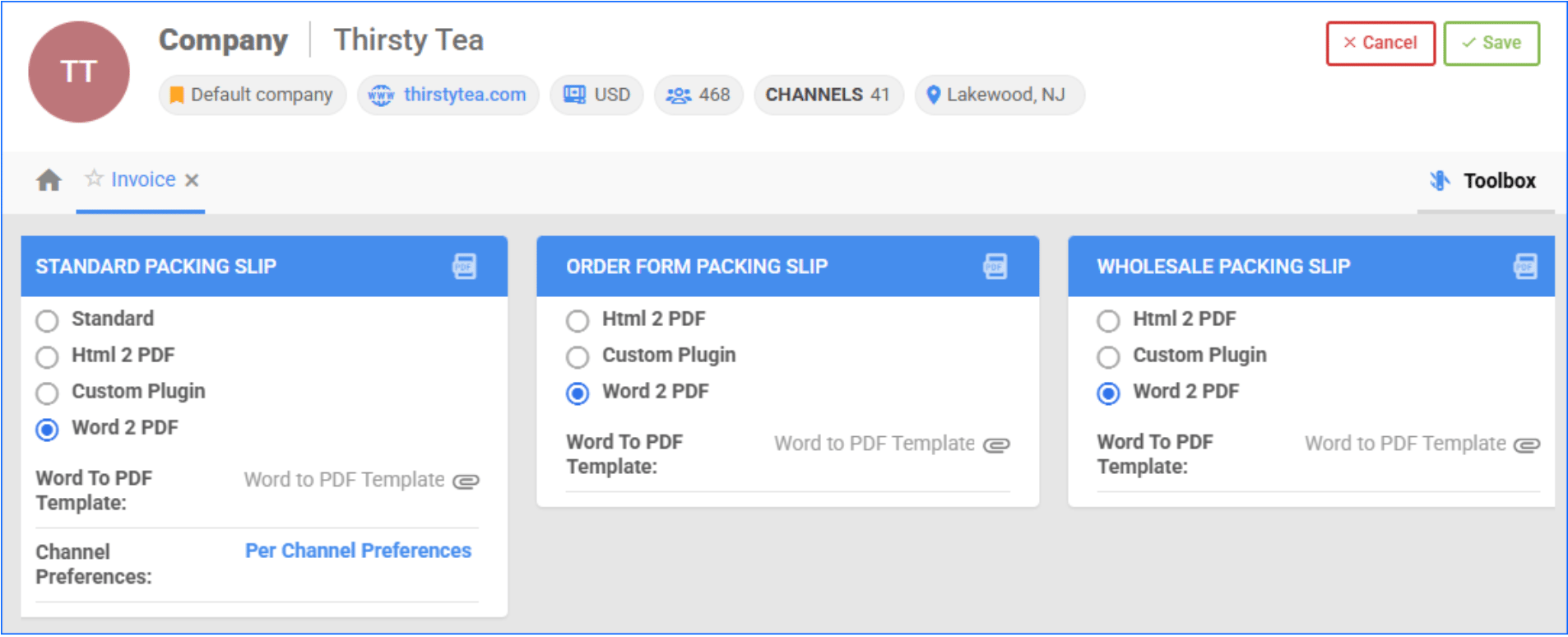 Upload the nocnoc template file using the upload option next to the Word2PDF setting.
Click **Save**.
## Step 3 — Print the invoice for an order
Once the template is configured, you can print a PDF invoice in two ways:
1. **Order Details page** — open the order → click the **Actions** menu → select **Print Invoice to PDF** → **Go**
2. **Manage Orders page** — select the order → click the **Actions** menu → **Print Invoice to PDF** → **Go**
Print one invoice per nocnoc order and include it inside the corresponding package before shipping the consolidated shipment to nocnoc's warehouse.
Upload the nocnoc template file using the upload option next to the Word2PDF setting.
Click **Save**.
## Step 3 — Print the invoice for an order
Once the template is configured, you can print a PDF invoice in two ways:
1. **Order Details page** — open the order → click the **Actions** menu → select **Print Invoice to PDF** → **Go**
2. **Manage Orders page** — select the order → click the **Actions** menu → **Print Invoice to PDF** → **Go**
Print one invoice per nocnoc order and include it inside the corresponding package before shipping the consolidated shipment to nocnoc's warehouse.
Have a question about this integration?{' '}
Contact our support team →